How to Use Dual SIM on iPhone With a Travel eSIM

In short
Dual SIM on iPhone lets you keep your regular number active while a second eSIM supplies travel data. Set the travel eSIM as Cellular Data, keep Data Roaming off for the home line, and turn off Allow Cellular Data Switching if avoiding home-network data charges matters.
- An iPhone XS, XS Max, XR, or later can use Dual SIM with an eSIM, provided the carrier and regional model support it.
- iPhone 13 models and later can use two active eSIMs, which is useful when a travel eSIM replaces a physical second SIM.
- An iPhone uses only one cellular-data network at a time, so choose the travel eSIM as the Cellular Data line before departure.
- Keeping your home line turned on can preserve its number for calls and SMS, but a data-only travel eSIM does not add a second phone number or receive SMS verification codes.
- Turning off Allow Cellular Data Switching gives you tighter control over which line supplies mobile data while abroad.
Can your iPhone use two SIMs?
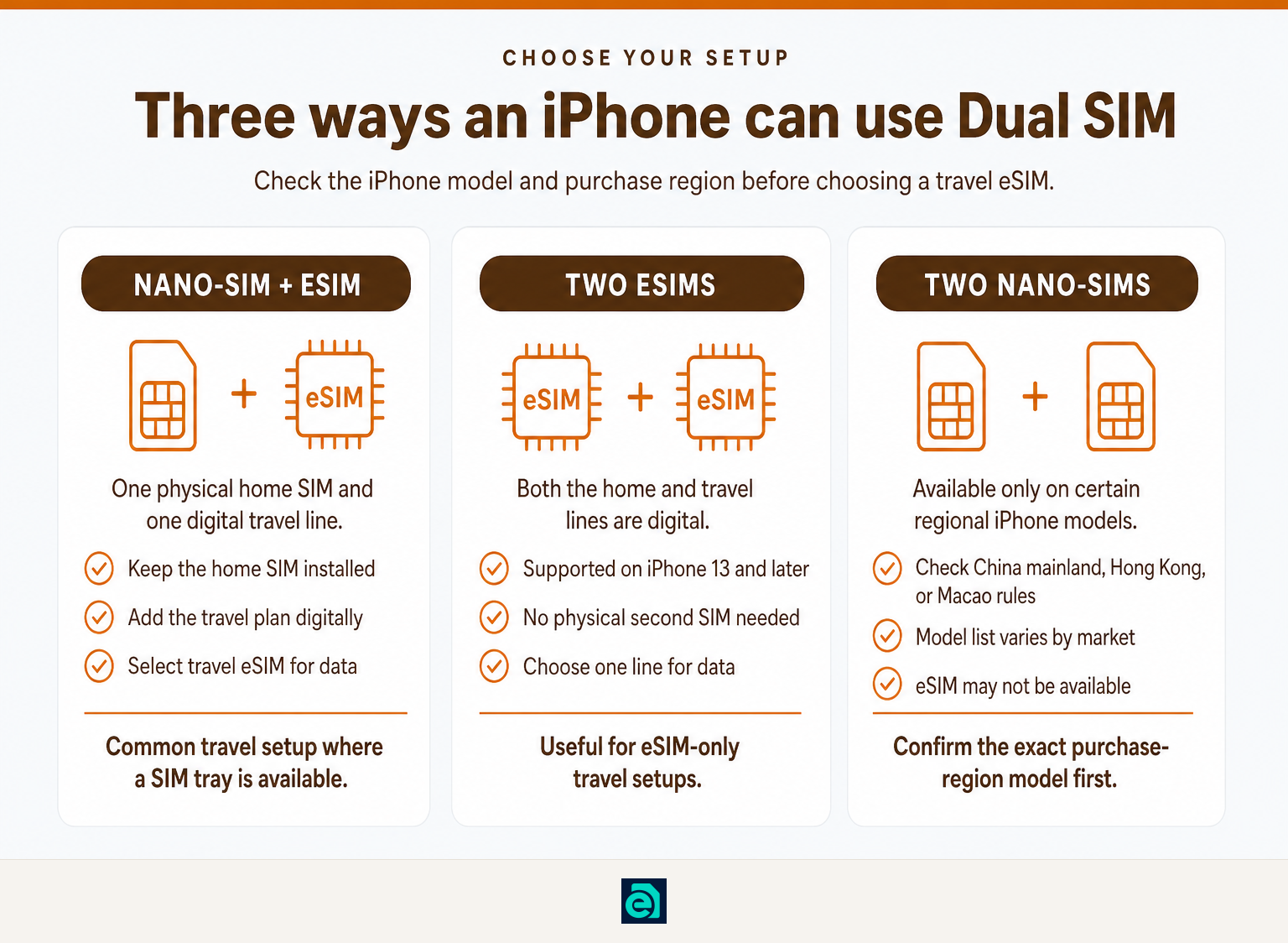
Most recent iPhones can use two cellular lines, but the exact combination depends on the model and where it was bought. For travel, the usual goal is simple: keep a home line for its number and use a travel eSIM for mobile data.
Apple's Dual SIM guidance, updated September 17, 2026, says iPhone XS, iPhone XS Max, iPhone XR, and later support Dual SIM with an eSIM. Apple also says iPhone 13 models and later support two active eSIMs, in addition to a physical nano-SIM plus eSIM setup where the device has a physical SIM tray. Apple's Dual SIM support page is the authority if your model, carrier, or country is unusual. (support.apple.com)
| Your iPhone situation | Typical Dual SIM option | What it means for travel |
|---|---|---|
| iPhone XS, XS Max, XR, 11, 12, 13, 14, or later with a physical SIM tray | Home nano-SIM + travel eSIM | Keep the physical home SIM installed and add the travel plan digitally. |
| iPhone SE, 3rd generation, iPhone 13, or later | Home eSIM + travel eSIM | Keep both plans digital and choose which line provides data. |
| iPhone bought in China mainland, Hong Kong, or Macao | Hardware configuration varies by model and market | Check the exact purchase region before assuming the phone supports eSIM or two nano-SIMs. |
China mainland, Hong Kong, and Macao need special care. Apple lists certain models sold in those markets that support two nano-SIM cards, while eSIM availability and compatibility differ by device and location. Check the model number and purchase market, not only the iPhone name. (support.apple.com)
Before buying a plan from a different provider, confirm that the iPhone is unlocked. Apple says that using two different carriers requires an unlocked iPhone, unless both plans are from the same carrier. Use our guide on how to check if iPhone is unlocked before relying on a travel eSIM.
The useful travel configuration is not two identical lines. It is one home line for your established number and one travel line assigned specifically to mobile data.
How do you set up a home line and travel eSIM?
Add the travel eSIM, label both lines clearly, then make the travel eSIM your Cellular Data line. This setup keeps the jobs separate before you arrive, when a wrong setting is easiest to miss.
Start while you have reliable Wi-Fi. Install the travel eSIM using the QR code or manual activation details provided by the seller. If you need the installation steps, follow our guide on how to activate eSIM on iPhone.
After the plan appears in Settings > Cellular or Settings > Mobile Data, turn on both lines. Apple instructs users to open the line and choose Turn On This Line if it is not active. (support.apple.com)
Use unmistakable names. A practical pair is:
- Home for the normal number you use for banking, contacts, calls, and SMS.
- Travel Data for the eSIM that will provide mobile internet abroad.
To rename a line, go to Settings > Cellular or Mobile Data, tap the line, then select Cellular Plan Label. Apple notes that the label appears in Phone, Messages, and Contacts, so a clear label reduces the chance of sending a message or placing a call on the wrong line. (support.apple.com)
Next, set roles deliberately:
- Go to Settings > Cellular or Mobile Data.
- Tap Cellular Data and select Travel Data.
- Tap Default Voice Line and select Home if you want your usual number to be the default for calls.
- Review iMessage and FaceTime selections if you use them with the home number.
- Keep both lines enabled until you decide that the home line should be fully off.
A travel eSIM from eSIM Trading is data-only. It can supply mobile internet, but it does not create a second telephone number and cannot receive calls, SMS, or SMS one-time-password codes. Keeping the home line active is therefore the practical option when you need that existing number to remain reachable.
The safest setup is complete when the travel eSIM is labeled, active, and selected for Cellular Data before you leave Wi-Fi.
How do you stop your home line from using travel data?
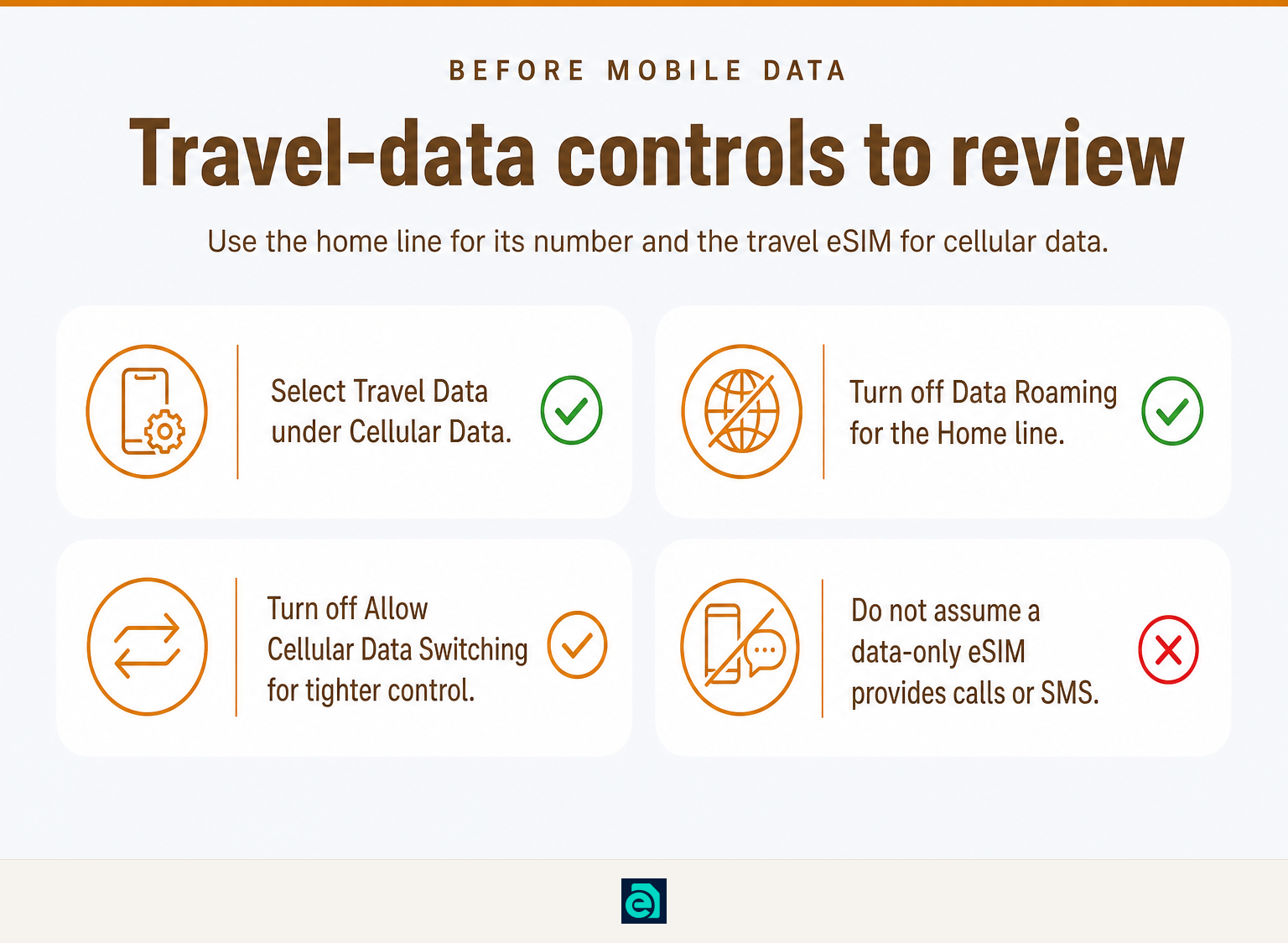
Choose the travel eSIM for Cellular Data and switch off Data Roaming for the home line. For stricter control, turn off Allow Cellular Data Switching so the iPhone does not switch data lines when coverage or availability changes.
If you are using your iPhone to plan activities in Maui, this guide to the best places to see sea turtles in Maui also explains how to watch them responsibly.
Apple states that an iPhone can use one cellular-data network at a time. In Settings > Cellular > Cellular Data, choose the travel eSIM. Apple also warns that Data Roaming outside a carrier's covered region can result in roaming charges. (support.apple.com)
For a cautious travel setup, check each line separately:
| Setting | Home line | Travel Data line |
|---|---|---|
| Turn On This Line | On if you need the home number | On |
| Cellular Data | Not selected | Selected |
| Data Roaming | Off | Follow the travel eSIM plan's activation instructions |
| Allow Cellular Data Switching | Off for tighter cost control | The setting applies to the phone's data behavior, not one individual line |
Why turn off Allow Cellular Data Switching? Apple says that, when enabled, the iPhone can use cellular data from either plan depending on coverage and availability. That can be helpful for some people, but it is not the simplest setting when the home line could incur roaming charges. (support.apple.com)
There is a trade-off. Apple explains that during a call on the non-data line, mobile data may not work if Allow Cellular Data Switching is off. That is normal behavior, not necessarily a failed travel eSIM. If maintaining data during a call matters more than strict separation, assess your carrier's roaming terms before changing the setting. (support.apple.com)
For cost control, make the travel eSIM the only selected data line, disable home-line roaming, and leave cellular-data switching off unless you understand the trade-off.
How do calls, messages, and data work with two lines?
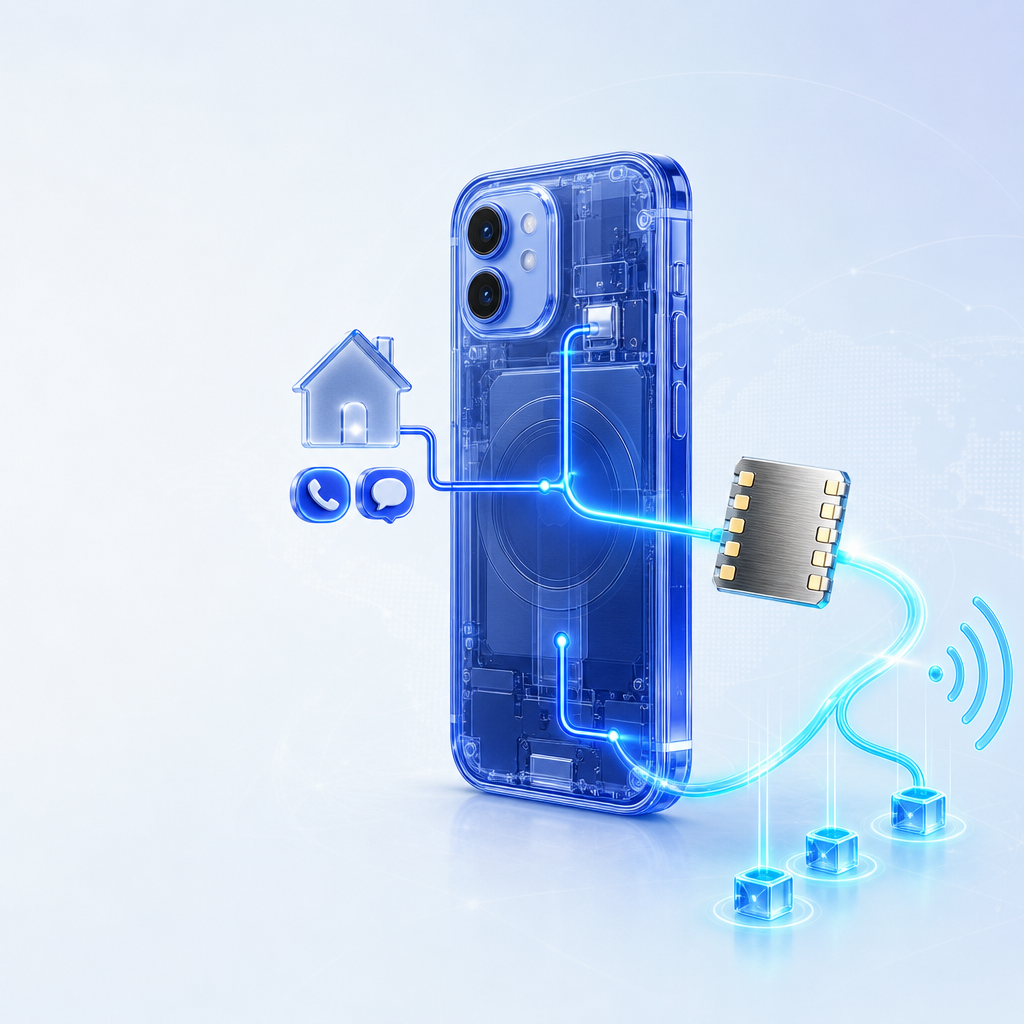
Both active lines can generally make and receive calls and messages, but only one line supplies cellular data at a time. A data-only travel eSIM changes the practical result because it provides internet, not a second number for conventional calling or SMS.
Apple describes iPhone Dual SIM as Dual SIM Dual Standby. That means both lines can remain available for calls and messages, subject to carrier features, signal, and settings. The phone remembers the line used for a contact, while you can choose another line before placing a call or starting a new message. (support.apple.com)
For calls, tap the current line shown near the top of the Phone app before dialing, then choose the other line if needed. For a new message, tap the displayed line at the top of the new-message screen and select the preferred line. Apple notes one important limitation: an existing SMS or MMS conversation cannot simply be moved to the other line. You must start a new conversation on that line. (support.apple.com)
The travel use case looks like this:
- Calls and SMS to your regular number: use the Home line and depend on its carrier terms, Wi-Fi Calling availability, and signal.
- Maps, browsers, messaging apps, rides, and email: use the Travel Data line because it is selected for Cellular Data.
- Personal Hotspot: uses the selected cellular-data line. If your plan permits tethering, see our guide to enable personal hotspot on iPhone, including with a travel eSIM. (support.apple.com)
Do not treat a data-only eSIM as a replacement for a home number when an app or account needs an SMS code. Keep the home line available, or arrange an alternative verification method before the trip.
Your iPhone can keep two lines active, but the cellular-data choice is the setting that determines which plan carries everyday online activity.
Can you switch off one SIM in a Dual SIM phone?
Yes. Open Settings > Cellular or Mobile Data, tap the line you want to pause, and turn off Turn On This Line. The other line can remain active, but the switched-off line cannot receive calls, messages, or cellular service until you turn it on again. (support.apple.com)
Turning off the home line is the strongest way to prevent it connecting to a foreign mobile network. It also means that calls and SMS sent to the home number will not reach the phone through that line. Choose this approach only if you do not need that number during the trip.
A middle ground is often better: leave the Home line on, set its Data Roaming to off, make Travel Data the cellular-data line, and disable Allow Cellular Data Switching. This preserves the line while reducing the chance that it is used for mobile data.
If you are concerned about unexpected charges, check the home carrier's roaming policy and Wi-Fi Calling rules before departure. Apple notes that carrier availability and additional fees can affect calling behavior with Dual SIM. (support.apple.com)
Switching a line off is simple, but it is an availability decision: it removes that number from the phone until you turn the line back on.
What problems should you check before you travel?
Most Dual SIM problems come from three causes: a locked phone, an eSIM that is installed but not selected for data, or a home line with roaming settings left unchanged. Check all three before relying on mobile data at your destination.
Use this pre-departure checklist:
- Confirm the iPhone is unlocked. A phone locked to one carrier might reject a plan from another provider.
- Install the eSIM while on Wi-Fi. Save the QR code or manual details securely in case you need to reinstall it.
- Turn on both lines. Check that Home and Travel Data each show as active in Cellular or Mobile Data settings.
- Select Travel Data for Cellular Data. Do not assume the newest plan is selected automatically.
- Set home-line Data Roaming to off. Review the travel line separately and follow its plan instructions.
- Turn off Allow Cellular Data Switching if your priority is preventing data from moving to the home line.
- Test before departure. Turn Wi-Fi off briefly, confirm that the travel line is selected, then restore Wi-Fi if the plan is intended to activate only at the destination.
- Check plan terms. Data allowances, validity, supported networks, tethering availability, and fair-use thresholds vary by plan.
Some travel plans marketed as unlimited have fair-use thresholds. Review fair-usage conditions before buying if sustained high-data use, hotspot use, or video streaming is important to your trip.
At eSIM Trading, we sell prepaid country and regional travel-data eSIMs, not voice, SMS, or telephone-number plans. Choose the destination or regional plan that matches your itinerary, install it before departure, and assign it as the iPhone's Cellular Data line.
A successful travel setup is less about having two SIMs and more about giving each line one clear job before you leave.
Frequently asked questions
How to have 2 SIM cards in 1 iPhone?
You can use two lines on a compatible iPhone by combining a physical nano-SIM with an eSIM, or by using two active eSIMs on supported models. Add the second line in Settings, turn on both lines, label them, then choose which one handles cellular data and default calls. (support.apple.com)
What are the disadvantages of Dual SIM iPhone?
Dual SIM adds choices that can be easy to misconfigure: the wrong line can be selected for data, carrier roaming terms still apply, and data works on only one cellular network at a time. During calls, data behavior can also change depending on Wi-Fi Calling and Allow Cellular Data Switching. (support.apple.com)
Can I switch off one SIM in a Dual SIM phone?
Yes. Go to Settings, open Cellular or Mobile Data, tap the line, and turn off Turn On This Line. The other line can stay active. Turning a line off prevents that line from receiving cellular service until it is enabled again. (support.apple.com)
How do you switch between SIMs on a Dual SIM iPhone?
For mobile data, go to Settings > Cellular or Mobile Data > Cellular Data and select the line you want. For calls or a new message, tap the current number displayed in the Phone or Messages app and choose the other line before sending or dialing. (support.apple.com)
Which iPhone has Dual SIM?
Apple says iPhone XS, iPhone XS Max, iPhone XR, and later can use Dual SIM with an eSIM. Apple says two active eSIMs are supported on iPhone SE, 3rd generation, iPhone 13, and later, though physical SIM and eSIM availability vary by model and region. (support.apple.com)
The setting to remember is Cellular Data: select the travel eSIM there, then verify that home-line roaming and data switching match your tolerance for roaming charges.
Are you ready to use Dual SIM with a travel eSIM?
Set up the second line before departure, name it clearly, and test your selected data line while you still have dependable Wi-Fi. Then choose the country or regional travel-data plan that matches where you are going and keep your home number only as available as you need it to be.
Ready to travel without roaming bills?
Instant eSIM data plans for 148 countries — delivered as a QR code in under a minute. No account, no contract.
Browse destinations