How to Check Mobile Data Usage on iPhone While Traveling

In short
To check mobile data usage on an iPhone, open Settings > Cellular, review the data shown for each app, and reset the statistics when a new travel eSIM or billing period begins. On a dual-SIM iPhone, select the travel line first so home-line usage is not mistaken for eSIM usage.
- iPhone shows cellular usage by app, including a separate System Services total that cannot be switched off app by app.
- Reset Statistics starts a fresh device-side tracking period, so set the reset point yourself when a travel eSIM begins.
- Apple says to contact the carrier for the most accurate current-period total, so use provider usage alerts to check what remains on an eSIM plan.
- On a dual-SIM iPhone, check the selected cellular-data line before interpreting an app's usage total.
Table of contents
- How do I check my cellular data usage on iPhone?
- How do I find out what is draining my data on my iPhone?
- How do I track a travel eSIM separately from my home line?
- How do I check mobile data usage on iPhone per day or month?
- How can I use less data while traveling?
- Frequently asked questions
How do I check my cellular data usage on iPhone?
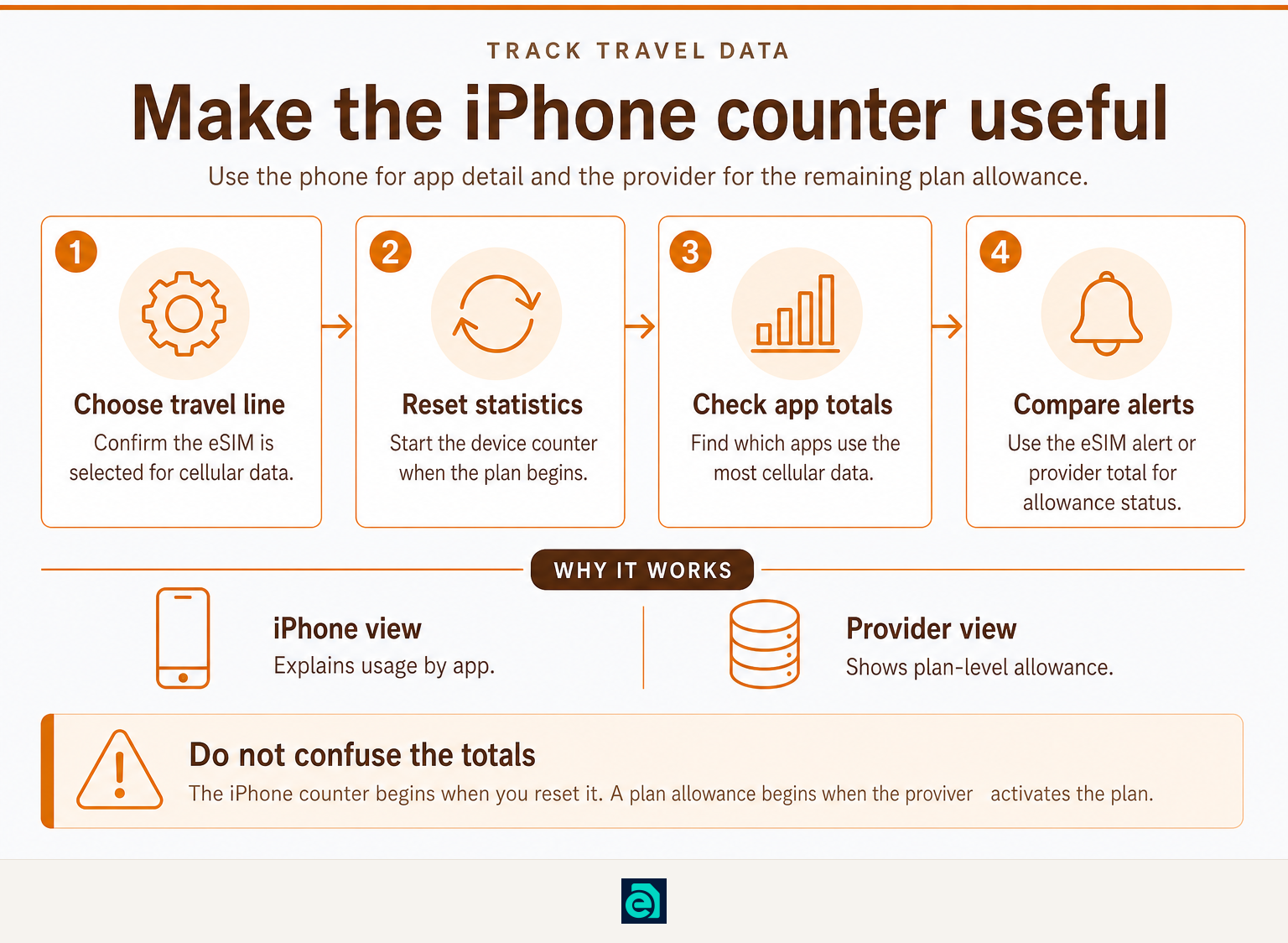
Open Settings > Cellular and scroll through the apps and services that have used cellular data. Tap Show All if it appears, then read the usage amount below each app name. Apple also lists System Services separately above the app list. Apple's iPhone User Guide confirms that the same screen lets you view usage and turn cellular access on or off for individual apps. (support.apple.com)
The total on this page is useful only when you know its starting point. Before a new trip or eSIM plan starts, scroll to the bottom of the Cellular screen and tap Reset Statistics. Apple documents that reset control, but also says to contact the carrier for the most accurate current-period figure. In other words, the iPhone total is your device counter, while the eSIM provider's total is the better reference for allowance or billing status. (support.apple.com)
A simple travel routine is to reset iPhone statistics just before you begin using the travel line. Take a screenshot of the zeroed screen if you want a clear record of your start point.
The useful number is not merely the total shown today. It is the total since the moment you deliberately began tracking the travel plan.
How do I find out what is draining my data on my iPhone?
In Settings > Cellular, look for the largest numbers under the apps list. The app with the largest figure has used the most cellular data since the last statistics reset, and its switch lets you block that app from using cellular data. (support.apple.com)
Start with the apps you use while moving around: maps, social video, cloud-photo backup, music or video streaming, and any app that refreshes large files in the background. Do not guess. The app list gives you the evidence for your own phone.
If one app is unexpectedly high, switch off its cellular access. Apple says that when cellular data is off for an app, the iPhone uses Wi-Fi for that service instead. That makes this a targeted control, not an all-or-nothing data shutdown. (support.apple.com)
Also inspect System Services. Apple separates this total from individual apps and notes that cellular access cannot be toggled for individual system services. If the System Services figure is substantial, focus on reducing optional app activity rather than looking for a single switch in that section. (support.apple.com)
The fastest way to find a data drain is to sort the evidence in your head: check the largest app total first, then decide whether that app truly needs cellular access.
How do I track a travel eSIM separately from my home line?
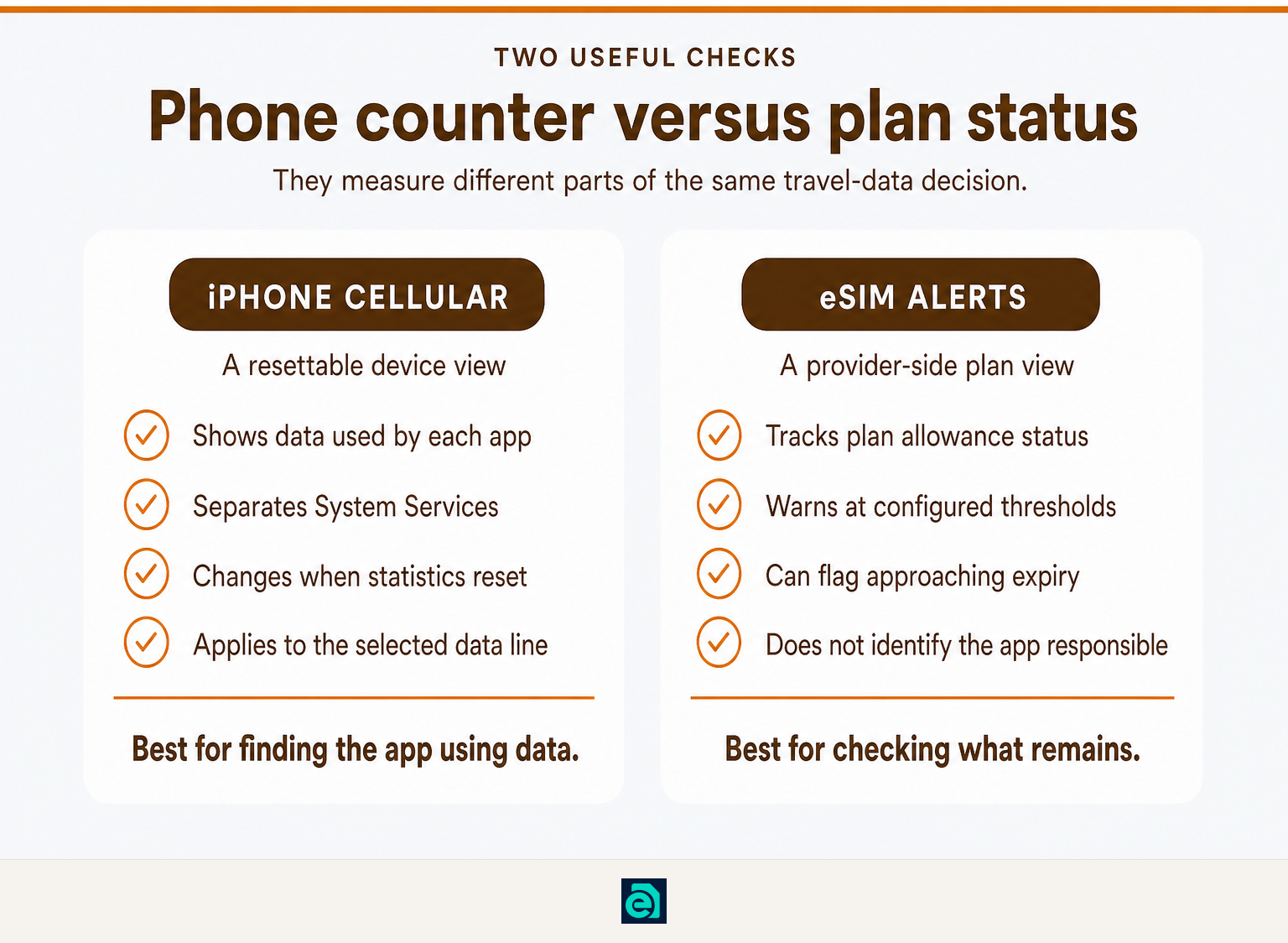
On a dual-SIM iPhone, first confirm which line is selected for cellular data, then check the app figures for that selected number. Apple states that Dual SIM users can see data used with the selected cellular-data number. (support.apple.com)
Give your lines clear labels before the trip, such as Home and Travel. Then go to Settings > Cellular, select the travel line when you need to confirm its details, and make sure the travel eSIM is the line selected for cellular data before trusting the numbers you see.
This matters because a phone can contain two active plans but use one line for data at a time. If the home line remains selected, app usage may be attributed to that line rather than the travel eSIM you meant to monitor.
Use two checks together:
- iPhone Cellular statistics reveal which apps are consuming data on the selected line.
- The eSIM provider's usage alert or account total shows how much plan allowance remains.
For example, eSIM Trading says its current unlimited-plan alerts arrive at 50% and 90% usage, with another alert one day before expiry. Those alerts are useful as a plan-level check, while the iPhone's app list explains what used the data. Read the current fair-usage thresholds before relying on an unlimited-plan label, because allowances and speed management can apply. (esim-trading.com)
A dual-SIM data check only works when the selected data line is correct, so verify the line before diagnosing an expensive app.
How do I check mobile data usage on iPhone per day or month?
iPhone gives you a resettable cellular-usage counter, so daily or monthly tracking depends on when you reset it. For a monthly plan, reset statistics when the plan begins; for a daily allowance, reset each morning only if you are comfortable losing the previous day's device total.
Apple's documented reset control is at the bottom of the Cellular screen. Apple also advises contacting the carrier for the most accurate current-period usage, which is especially important when an eSIM plan begins at a different time from your home carrier's billing month. (support.apple.com)
For a fixed-data travel eSIM, reset iPhone statistics immediately before activating or first using the plan. If you need help before that step, start with travel-data eSIM plans that show the plan allowance and validity before purchase.
For a daily plan, use a light record rather than relying only on resets:
- Reset the iPhone counter in the morning.
- Note the total before the next reset.
- Compare it with the provider's alert or remaining-data view.
- Keep the provider's figure as the allowance reference if the two totals differ.
The iPhone counter answers "what has this phone used since I reset it?" while the provider total answers "what remains on this specific plan?"
How can I use less data while traveling?
Use Low Data Mode, limit cellular access for nonessential apps, and connect to trusted Wi-Fi when it is available. Apple says Low Data Mode pauses automatic updates and background tasks when the iPhone is not connected to Wi-Fi. (support.apple.com)
For a travel eSIM, the highest-value changes are usually small and specific:
- Turn off cellular access for apps that can wait for Wi-Fi, especially cloud storage and automatic media uploads.
- Download maps, playlists, podcasts, and shows before leaving Wi-Fi.
- Avoid high-resolution video streaming when you have a fixed allowance.
- Check Personal Hotspot use separately, because another connected device can consume a plan much faster than the iPhone alone.
- Keep your home line's data roaming setting off when it is not intended to provide travel data. Apple identifies Data Roaming as the setting that permits internet access outside a carrier's network coverage area. (support.apple.com)
If your plan is marketed as unlimited, read the provider's fair-usage terms rather than assuming every gigabyte is delivered at the same speed. eSIM Trading's policy, last updated September 14, 2026, says its unlimited plans have indicative total allowances and staged speed management. (esim-trading.com)
Reducing travel data use works best when you block the few apps that do not need cellular access, rather than trying to use your whole phone less.
Frequently asked questions
How do I check my monthly data usage on my iPhone?
To check monthly data usage on an iPhone, open Settings > Cellular and review the cellular figures shown for apps and services. Reset Statistics on the day your monthly plan begins so the iPhone counter reflects that period. For the provider's official allowance total, use the carrier or eSIM provider's usage information. (support.apple.com)
How do I check my cellular data usage?
To check cellular data usage on an iPhone, go to Settings > Cellular, scroll to the app list, and read the amount shown beneath each app. Tap Show All if needed. Apple also lists System Services separately and provides a Reset Statistics control at the bottom of the Cellular page. (support.apple.com)
How can I check my Mobile Data usage on my iPhone?
To check Mobile Data usage on an iPhone, open the cellular settings menu, which may be labelled Cellular or Mobile Data by region, then review per-app data figures. On a dual-SIM iPhone, first select the line used for mobile data so the displayed usage applies to the line you intend to check. (support.apple.com)
How do I find out what is draining my data on my iPhone?
To find what is draining iPhone data, open Settings > Cellular and look for the largest data figure below an app name. That app has used the most cellular data since the counter was reset. Turn off cellular access for an app that does not need it while away from Wi-Fi. (support.apple.com)
The best answer to a usage question is a repeatable check: identify the selected line, inspect the largest app totals, and compare the resettable phone counter with your plan's own usage alerts.
What should I do before I leave?
Set up the travel eSIM, label it clearly, select it as the cellular-data line when appropriate, then reset iPhone statistics at the beginning of the plan. If you still need a plan, browse our travel-data eSIM plans and choose the destination or regional allowance that fits the trip. We send usage and expiry alerts in chat so you can check the plan status without treating a manually reset iPhone counter as the only source of truth. (esim-trading.com)
Set the reset point before the trip begins. That one step makes every later data check easier to understand.
Ready to travel without roaming bills?
Instant eSIM data plans for 148 countries — delivered as a QR code in under a minute. No account, no contract.
Browse destinations