How to Prevent Roaming Charges Without Losing Mobile Data Abroad

In short
To prevent roaming charges while keeping mobile data abroad, turn off data roaming on your home line, select a travel eSIM as the phone's mobile-data line, and disable automatic data switching. If you do not need calls or texts on your home number, turn that line off completely until you return.
Key takeaways
- Turning off data roaming protects a home line from using mobile data on a foreign network, but it does not automatically make a second line your data source.
- On a dual-SIM phone, choose the travel eSIM for mobile data and prevent automatic switching back to the home line.
- Airplane mode is the strongest no-cellular safeguard, but it also stops normal carrier calls and SMS until you reconnect to Wi-Fi or re-enable a line.
- Wi-Fi itself does not use mobile roaming data, but weak Wi-Fi can trigger cellular fallback features if those settings remain enabled.
Contents
- What is the safest way to prevent roaming charges and still use data abroad?
- How do I stop my home line using data on iPhone?
- How do I set an Android phone to use a travel eSIM instead?
- What else can trigger roaming charges after data roaming is off?
- What else do travelers ask about roaming charges?
- What should you do before boarding?
International roaming charges happen when a home carrier line uses a partner network abroad. The reliable fix is not simply buying another eSIM. You must also tell the phone which line may use mobile data, then block the home line from taking over.
What is the safest way to prevent roaming charges and still use data abroad?
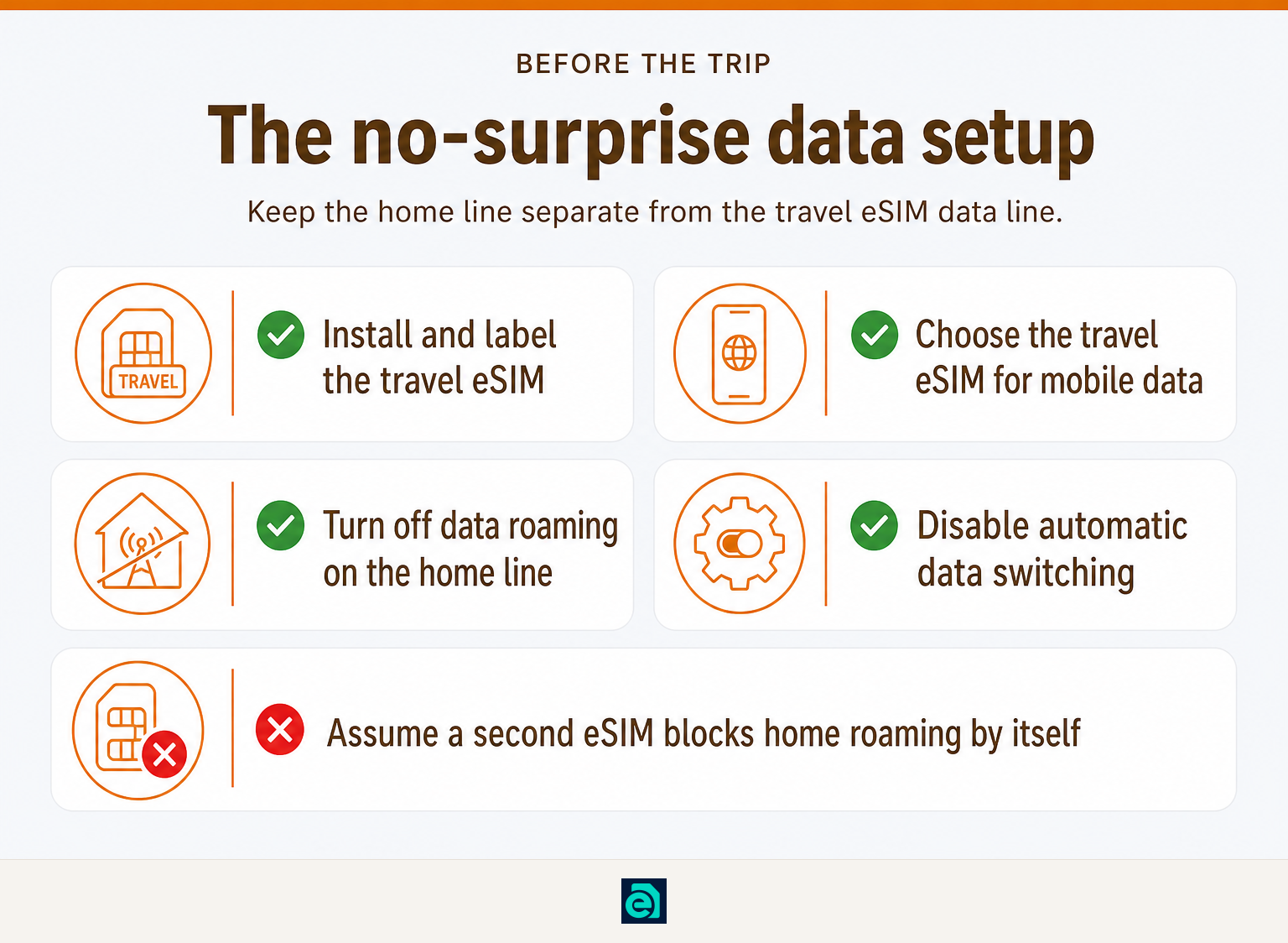
The safest everyday setup is a home line kept active for essential messages, with data roaming off, plus a travel eSIM selected for mobile data. Before departure, verify that your phone is unlocked and that the travel plan covers every destination on your itinerary.
A travel eSIM gives you a separate mobile-data connection. It does not automatically stop your home line from roaming. On a dual-SIM phone, make these decisions deliberately:
- Install the travel eSIM before leaving and give it an obvious label, such as “Travel Data.”
- Choose that eSIM for mobile data. A dual-SIM phone uses only one line for cellular data at a time.
- Turn off data roaming for the home line. Apple’s guidance for dual-SIM iPhones is to choose the specific line before changing its roaming setting. (support.apple.com)
- Turn on roaming only for the travel eSIM if its instructions require it. Many travel eSIMs need this because they connect through local partner networks.
- Turn off automatic data switching. Otherwise, a phone can move data traffic back to the home line when the travel eSIM has weak coverage.
A travel eSIM is only suitable for your data needs. eSIM Trading’s plans are data-only, so ordinary carrier voice calls, SMS, and SMS verification codes remain tied to your home line or another service. Our guide to an international SIM card or travel eSIM explains when each option fits a trip.
The key point is simple: your travel eSIM must be the selected data line, and your home line must not be allowed to roam for data.
How do I stop my home line using data on iPhone?
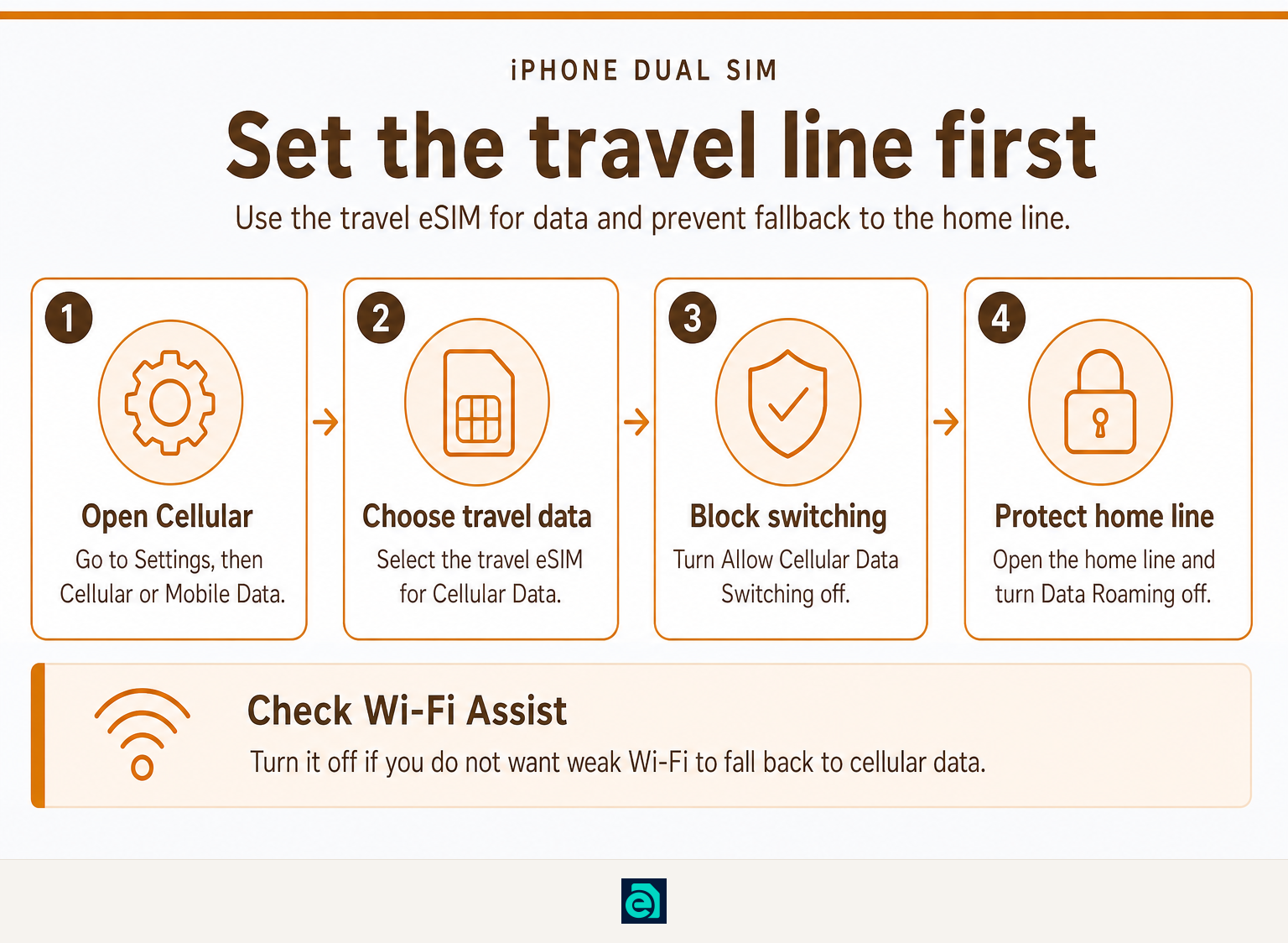
On an iPhone, choose the travel eSIM for Cellular Data, turn off Data Roaming on the home line, and turn off Allow Cellular Data Switching. Apple confirms that an iPhone can use only one cellular-data network at a time, while the switching setting can let the phone use either line depending on coverage. (support.apple.com)
Use this iPhone checklist. Names can differ slightly by iOS version and region, but the controls are usually under Settings > Cellular or Settings > Mobile Data.
- Go to Settings > Cellular > Cellular Data.
- Select the travel eSIM as the line used for cellular data.
- Turn Allow Cellular Data Switching off.
- Return to Cellular, then tap your home line.
- Open Cellular Data Options and turn Data Roaming off.
- Tap the travel eSIM, open Cellular Data Options, and follow its activation instructions. Some travel plans require Data Roaming to be on for that eSIM.
- Optional: if you do not need your home number at all, go to its line settings and turn on Turn On This Line only when needed, or disable the line for the trip.
Apple also notes that Wi-Fi Assist can use cellular data when Wi-Fi is poor. Review it in Settings > Cellular and switch it off if you want to avoid a weak hotel or airport network pushing traffic onto mobile data. (support.apple.com)
On iPhone, selecting the travel eSIM for data is not enough unless you also block data roaming and automatic data switching on the home line.
How do I set an Android phone to use a travel eSIM instead?
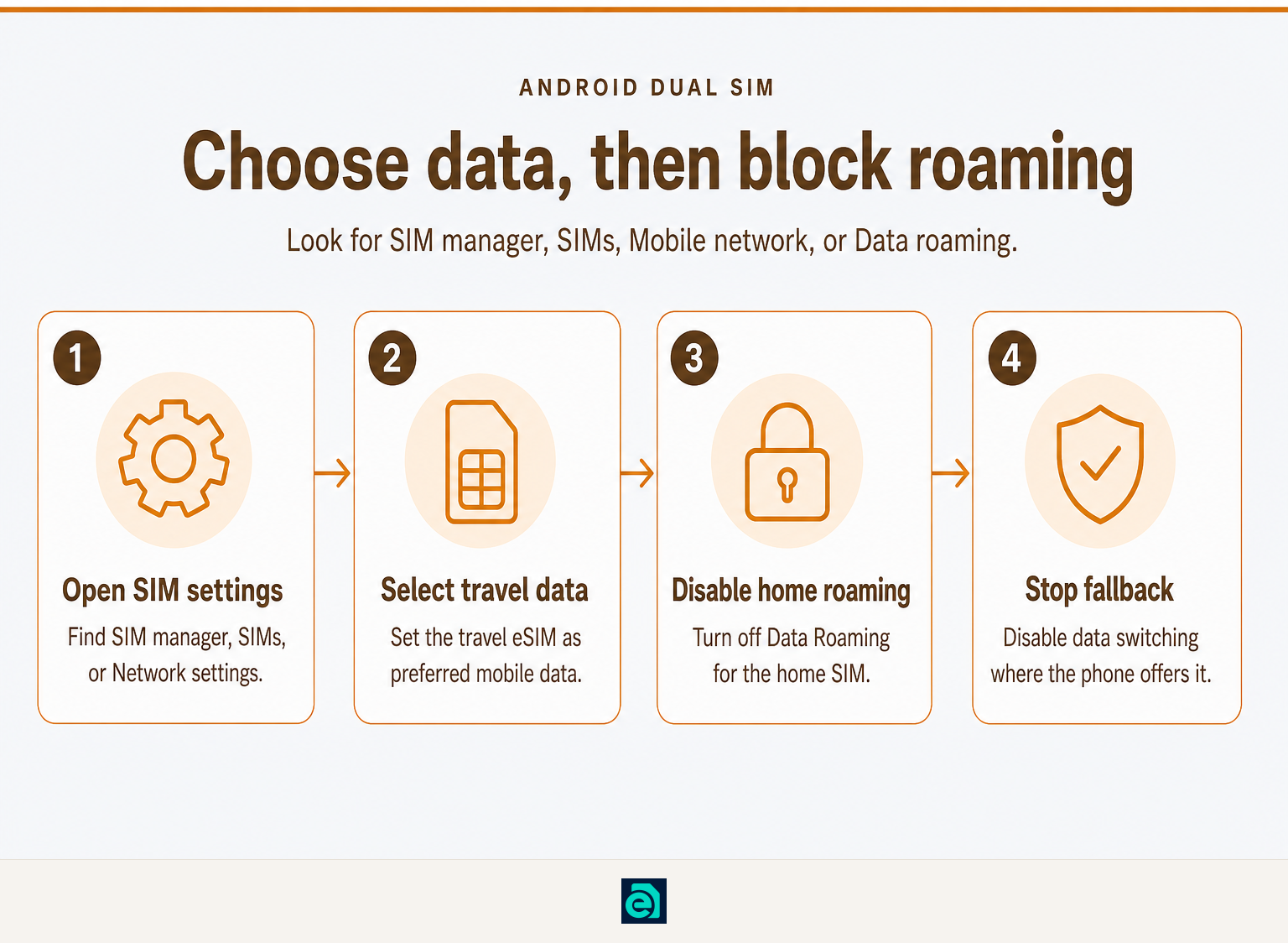
On Android, set the travel eSIM as the preferred SIM for mobile data and turn off roaming on the home SIM. Android menu names vary by manufacturer, carrier, and software version, so look for SIM manager, SIMs, Mobile network, or Data roaming.
For many Android phones, the practical sequence is:
- Open Settings > Network & internet > SIMs, or Settings > Connections > SIM manager.
- Confirm that both the home SIM and travel eSIM are enabled.
- Set the travel eSIM as the preferred SIM for Mobile data.
- Open the home SIM’s mobile-network settings and turn Data roaming off.
- Check for Data switching, Switch to mobile data, or a similar automatic fallback setting, then turn it off if it could move data to the home line.
- If you do not need the home number, disable the home SIM entirely for the trip.
Samsung’s June 2026 support guidance places the roaming control under Settings > Connections > Mobile networks and warns that available screens can vary by carrier, software version, and phone model. Samsung also documents choosing a primary SIM for data in SIM Manager. (samsung.com)
For a multi-country itinerary, choose a plan with regional eSIM coverage rather than changing data lines at every border. Check the included countries before purchase because regional coverage is plan-specific.
On Android, the protective combination is the same as on iPhone: travel eSIM selected for data, home-line roaming off, and no automatic fallback to the home line.
What else can trigger roaming charges after data roaming is off?
Turning off data roaming blocks roaming data on that line, but it does not erase every possible charge. Voice calls, traditional SMS, voicemail behavior, international dialing, and maritime or in-flight networks can have separate rules under your carrier plan.
The most common surprise is assuming that “data roaming off” means “the home line cannot cost anything.” It only targets cellular data roaming. If keeping your number active matters, check your carrier’s rules for incoming and outgoing calls, voicemail, SMS, and Wi-Fi Calling before departure.
Also watch for these situations:
- Weak Wi-Fi fallback: iPhone Wi-Fi Assist can use cellular data when Wi-Fi is poor unless you switch it off. (support.apple.com)
- Hotspot use: a hotspot consumes data from whichever line is currently selected for mobile data. Confirm that it is the travel eSIM before connecting a laptop or tablet.
- Background activity: app updates, cloud backups, and media downloads can use a travel eSIM’s allowance quickly. Apple’s Low Data Mode can reduce automatic updates and background tasks. (support.apple.com)
- Ships and aircraft: cellular service at sea or in the air may not be part of a normal destination eSIM plan. Keep airplane mode on unless you have checked the network and price.
- Borders: phones can attach to a stronger network across a border. Check the displayed network and ensure the plan covers your current location.
If you want the strongest possible block, enable airplane mode before landing, then turn Wi-Fi on manually when you need it. Add the travel eSIM only after you have checked its activation instructions and coverage.
Data roaming off protects against mobile-data charges on the home line, but calls, SMS, fallback settings, and non-terrestrial networks need their own checks.
What else do travelers ask about roaming charges?
Does putting your phone on airplane mode stop roaming charges?
Airplane mode stops the phone’s normal cellular connection, so it is the strongest setting for preventing roaming activity from both the home line and travel eSIM. You can turn Wi-Fi back on manually in airplane mode. However, ordinary carrier calls and SMS will not work unless you later re-enable a cellular line or use a supported Wi-Fi calling setup.
Will I be charged for roaming if I use Wi-Fi?
Using Wi-Fi does not use mobile roaming data, so Wi-Fi browsing and app use should not create a data-roaming charge by themselves. The risk is cellular fallback. Turn off features such as Wi-Fi Assist or automatic data switching, and check that your phone has not changed the active data line when the Wi-Fi signal becomes weak. (support.apple.com)
How do I avoid roaming charges when traveling internationally?
Before traveling internationally, install a travel eSIM or arrange another data option, select it as the mobile-data line, turn data roaming off on the home line, and disable automatic data switching. Download offline maps and essential travel documents before departure. Check your carrier separately for voice, SMS, voicemail, cruise, and in-flight roaming rules.
How to stop getting roaming charges?
To stop new roaming-data charges, turn off data roaming on your home line immediately and confirm that a travel eSIM, local SIM, or Wi-Fi connection is providing internet access instead. If you do not need to receive carrier calls or texts, switch the home line off entirely. Ask the carrier whether any charges already incurred can still be billed.
The best roaming defense is a deliberate line setup, not a last-minute assumption that the phone will choose the cheaper connection.
What should you do before boarding?
Set up and test the travel eSIM while you still have a stable connection. Label both lines, save offline maps, select the travel eSIM for data, turn off home-line roaming, and take a screenshot of the settings in case you need to check them after landing.
If you need prepaid data for one country or several, browse eSIM Trading travel-data plans before departure. We provide country and regional data-only eSIMs, including reusable eSIM top-ups. For plans marketed as unlimited, read the applicable fair-usage policy before you buy.
A correct setting today can prevent a confusing bill weeks after the trip ends.
Ready to travel without roaming bills?
Instant eSIM data plans for 148 countries — delivered as a QR code in under a minute. No account, no contract.
Browse destinations