APN Settings for Travel eSIMs: iPhone and Android Setup Guide

In short
APN settings tell your travel eSIM which mobile-data gateway to use. With eSIM Trading plans, APN setup is normally automatic, so start by checking that the eSIM is active, selected for data, and allowed to roam. Edit an APN only when your provider gives you exact values or asks you to change it. (esim-trading.com)
- A working APN does not make a mobile plan faster, but a missing or incorrect APN can stop mobile data from connecting.
- On a dual-SIM phone, select the travel eSIM as the mobile-data line before changing APN settings.
- iPhone APN fields appear only when the network provider permits editing, so a missing menu does not necessarily mean anything is wrong.
- Use only APN values supplied by the eSIM provider. Random free or fastest APN lists can replace a working profile with the wrong one.
- If an eSIM has signal but still cannot use data after the correct APN is selected, the problem may be network access or PDP authentication rather than the APN itself.
Table of contents
- What are APN settings, and should you change them?
- What should you check before APN settings?
- Where can I find my APN settings on Android?
- Where is APN on iPhone settings?
- When should you enter an APN manually?
- What if mobile data still does not work?
- Frequently asked questions
A travel eSIM can be installed correctly and still fail to load a map, message, or browser page. Before you edit technical fields, confirm the phone is using the travel eSIM for mobile data and that the line can use a partner network at your destination.
What are APN settings, and should you change them?
An APN, or Access Point Name, is the network path a phone uses for mobile data. An incorrect APN can prevent data from connecting, but a working APN is not a speed setting that needs optimization. (support.apple.com)
Think of an APN as an address for the phone's data connection. The provider supplies the address, and the phone uses it to reach the provider's mobile-data gateway. Some plans load those details automatically when the physical SIM or eSIM is activated.
That is the normal path for eSIM Trading travel plans. The site states that its eSIMs use automatic APN setup, so there is usually nothing to type after installation. (esim-trading.com)
Do not replace an existing profile just because a search result promises a fastest APN or unlimited-data APN. APN values must match the network provider and plan. A value intended for another provider can leave the phone with no data at all.
A correct APN restores the route to mobile data. It does not override your plan allowance, local coverage, network congestion, or fair-use limits.
What should you check before APN settings?
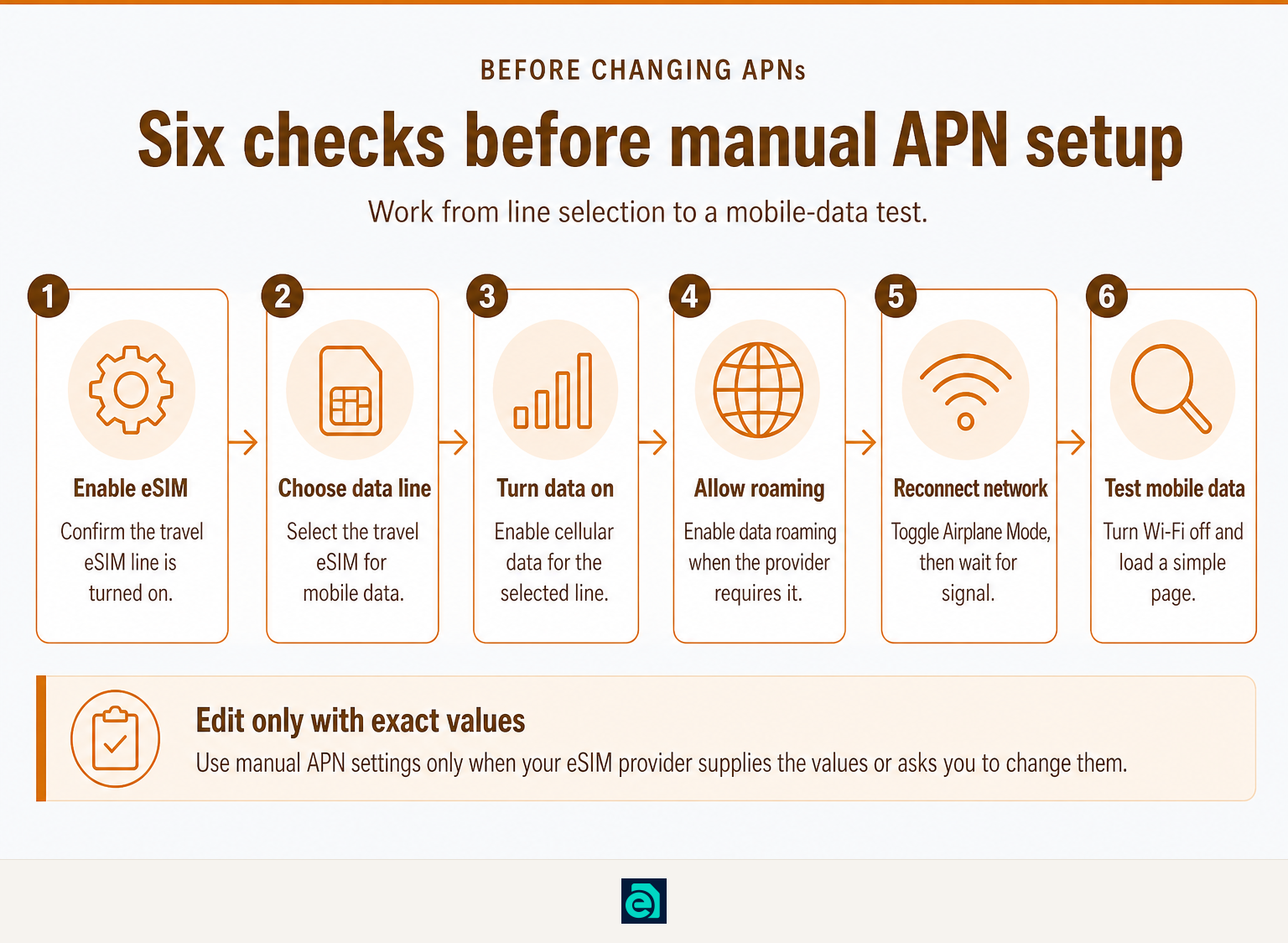
Check the eSIM line, cellular-data selection, and roaming setting before editing APN fields. These checks solve many travel eSIM connection problems without changing a profile that was configured correctly from the start. (support.apple.com)
Use this order:
- Confirm the eSIM is installed and turned on. Open your phone's SIM or cellular settings and make sure the travel eSIM line is enabled.
- Select the travel eSIM for cellular data. On phones with more than one SIM, the primary home line can remain selected for data after the travel eSIM is installed.
- Turn on mobile data. A phone cannot use the eSIM's data plan if cellular data is switched off.
- Turn on data roaming for the travel eSIM if your provider instructs it. International plans can use partner networks, and Apple notes that an international data plan may require Data Roaming to be on. (support.apple.com)
- Turn Airplane Mode on, wait briefly, then turn it off. This prompts the phone to register on a network again.
- Wait for a signal and test a simple page using mobile data only. Turn Wi-Fi off for the test so the result is clear.
If mobile data works after these checks, leave the APN alone.
Where can I find my APN settings on Android?
On many Android phones, APN settings are under Settings > Network & internet > SIMs or Mobile network > Access point names. Select the travel eSIM first when your phone has multiple SIMs, because each line can have separate mobile-network settings. (support.google.com)
Menu wording varies by manufacturer and Android version. On Samsung phones, the usual path is Settings > Connections > Mobile networks > Access Point Names. If you cannot find it, use the Settings search bar and search for Access Point Names or APN.
When the eSIM provider has given you manual values, follow these steps:
- Open the APN list for the travel eSIM, not your home SIM.
- Check whether a provider profile is already selected.
- If the provider tells you to add one, tap Add or the plus sign.
- Enter only the fields the provider supplied, usually the APN name and APN value.
- Save the profile, then select its radio button if Android does not select it automatically.
- Restart the phone or toggle Airplane Mode before testing mobile data again.
Do not fill blank fields with guessed values. Authentication type, proxy, port, MCC, MNC, APN type, and protocol settings should remain untouched unless the provider specifically lists them.
On Android, the safest APN change is a minimal one: use the travel eSIM's profile and enter only the exact values supplied by its provider.
Where is APN on iPhone settings?
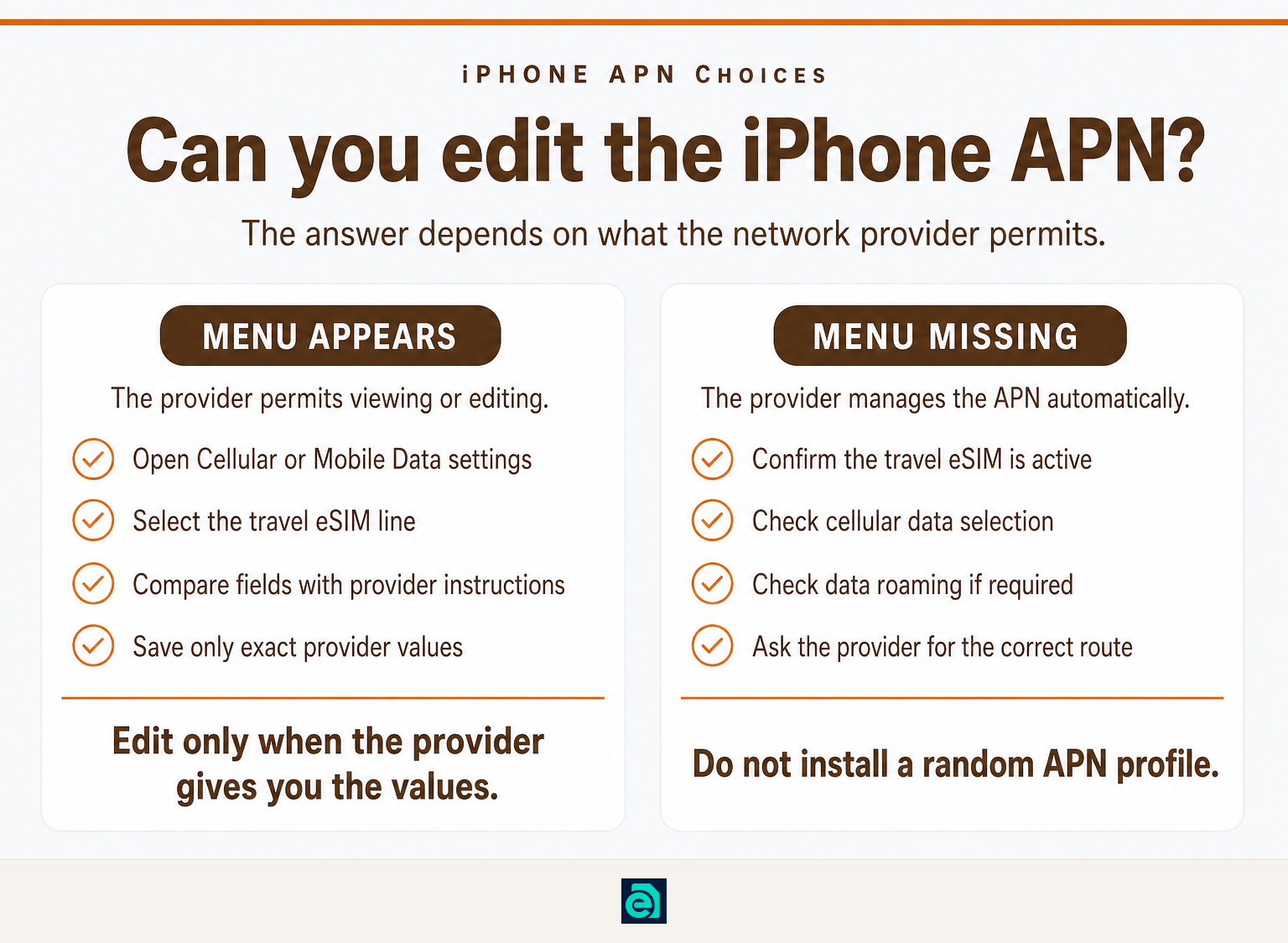
On iPhone, APN settings may be under Settings > Cellular > Mobile Data Network or Settings > Mobile Data > Mobile Data Options > Mobile Data Network. You can view or edit the menu only when the network provider allows it. (support.apple.com)
First, open Settings > Cellular or Settings > Mobile Data. If you have several lines, tap the travel eSIM and make sure it is selected under Cellular Data. Apple documents that data options, including roaming, are managed per selected cellular line on multi-SIM iPhones. (support.apple.com)
If Mobile Data Network appears, compare the existing value with the exact APN instructions from your provider. Apple warns that incorrect APN details can interrupt mobile data and may cause charges, so do not change a field unless you have the provider's value. (support.apple.com)
If the menu does not appear, the carrier may control the APN automatically. Contact the eSIM provider rather than trying to force a setting through another profile. Apple says that the absence of the APN menu means the provider must be contacted for the correct configuration route. (support.apple.com)
For tethering, an iPhone can also have a Personal Hotspot APN. If Personal Hotspot is missing, eSIM Trading says the hotspot APN should match the plan APN and is set automatically on its eSIMs. See the full hotspot and tethering support guide before editing that field. (esim-trading.com)
On iPhone, a missing APN menu usually means the provider manages the setting, not that you need to install a random APN profile.
When should you enter an APN manually?
Enter an APN manually only when the eSIM provider sends you exact values or directs you to change the profile. If the eSIM installed with a selected, working APN, manual editing creates more risk than benefit. (support.apple.com)
Manual configuration makes sense in three situations:
- The provider's installation message includes an APN value. Copy it exactly, including punctuation and capitalization where shown.
- The APN list is blank or the expected profile is not selected. Add or select the profile only according to the provider's instructions.
- Support has diagnosed an APN issue. Follow the current values they provide rather than values from an old blog post, a forum, or another carrier.
Do not use an Orange APN simply because you are connected to an Orange-branded network. The correct APN belongs to the provider and plan behind your eSIM, not necessarily the local network name shown in the status bar.
On iPhone, note that manually entered APN changes can reset after an iOS update unless they come from a configuration profile. Keep the provider's instructions available in case the profile needs to be restored. (support.apple.com)
Only provider-issued APN values are trustworthy, because APN details are specific to the connection service rather than the country you are visiting.
What if mobile data still does not work?
If the APN is correct and selected but mobile data still fails, stop changing APN fields and test the wider connection. The fault may be no local signal, incorrect data-line selection, a network-registration problem, an expired plan, or a PDP authentication error.
Use this quick diagnosis:
| What you see | Most useful next check |
|---|---|
| No signal bars or no network name | Confirm coverage, toggle Airplane Mode, and try automatic network selection. |
| Signal bars but no data icon or pages will not load | Recheck that the travel eSIM is selected for cellular data, then verify the APN with the provider. |
| APN is correct but data still cannot establish | Read our guide to pdp authentication failure for the next diagnosis. |
| Phone data works but hotspot does not | Check the hotspot configuration and the APN used for Personal Hotspot. |
| Data works but seems to disappear too quickly | Use this guide on how to check mobile data usage on iPhone to separate plan consumption from a connection fault. |
Google's Pixel support documentation also lists Reset Mobile Network Settings as a device-level reset option. Use it only after recording any provider-issued APN values, because a reset can remove saved network configuration. (support.google.com)
If the problem remains after those checks, send support a screenshot of the selected eSIM, the APN screen, the signal indicator, your destination, and the exact error shown by the phone. That gives the provider enough detail to check the plan and local network route.
When a correct APN does not restore data, the next useful step is to identify the actual connection failure instead of repeatedly editing the same fields.
Frequently asked questions
Where can I find my APN settings?
On Android, APN settings are usually under Settings > Network & internet > SIMs or Mobile network > Access point names. On iPhone, look for Settings > Cellular or Mobile Data > Mobile Data Network, but the menu appears only if the network provider permits editing. Select the travel eSIM first on a dual-SIM phone. (support.google.com)
What is the APN for Orange network?
There is no single Orange APN that is safe for every phone or travel eSIM. Use the APN supplied by the provider that issued your plan, even if your phone connects through an Orange-branded local network. An eSIM provider can route its plans through different network configurations, so copied values may not work. (support.apple.com)
Where is APN on iPhone settings?
On an iPhone, open Settings > Cellular or Settings > Mobile Data, then look for Mobile Data Network. Some iPhones show the route under Mobile Data Options. If the Mobile Data Network menu is absent, the carrier controls the APN and does not allow manual editing on that line. (support.apple.com)
Does APN settings increase speed?
APN settings do not increase the speed of a correctly connected mobile plan. A correct APN can restore data when the phone has the wrong route to the provider's network, but it cannot increase the plan's allowance or improve local coverage. Use only the provider's APN details, not fastest-APN claims. (support.apple.com)
The reliable rule is simple: treat APN settings as connection instructions, not a speed hack.
Ready to reconnect?
If your current plan is missing, expired, or not configured for your destination, browse travel-data eSIM plans with automatic APN setup and digital delivery. Then keep the provider's installation message saved until you have tested mobile data after arrival. (esim-trading.com)
Ready to travel without roaming bills?
Instant eSIM data plans for 148 countries — delivered as a QR code in under a minute. No account, no contract.
Browse destinations